


- Log in to SIOS20-NODE1 as SIOS20-AD\lkadmin.
- Start PowerShell for administrator and execute the following command to stop the OracleOraDB19Home1TNSListenerORCL and change Startup type to Manual.
Set the service name to a variable
PS > $service_name = "OracleOraDB19Home1TNSListenerORCL"
Check service status
PS > Get-Service $service_name | Select-Object Name, Status, StartType
Stop the service
PS > Stop-Service -Name $service_name
Change the StartType to Manual.
PS > Set-Service -Name $service_name -StartType Manual
- Select Start > Oracle-OraDB19Home1 to launch Net Manager.
- Select Listeners > ORCL in the left pane and select Address1 in the right pane.
![]()
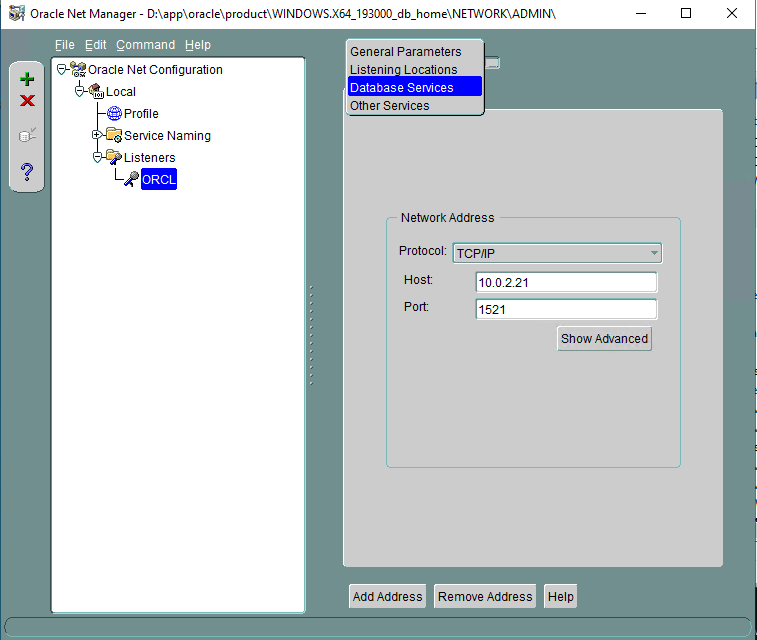
- Set the following values:
| Net Manager Listeners / ORCL | |
|---|---|
| Protocol | TCP/IP |
| Host | 10.0.2.21 |
| Port | 1521 |
- Open the list box at the top right, select Database Services.
![]()
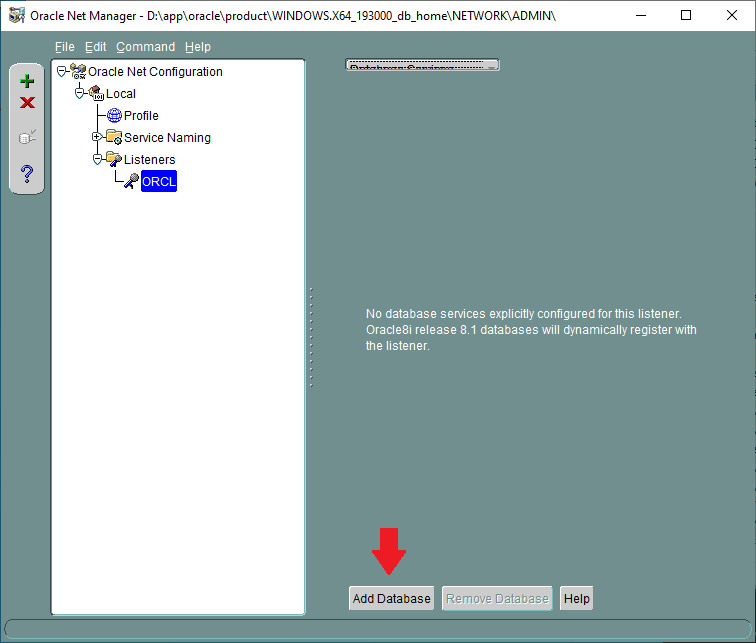
- Click Add Database at the bottom.
![]()
- Enter the following values:
| Net Manager Listeners / ORCL | |
|---|---|
| Global Database Name | (Empty) |
| Oracle Home Directory | D:\app\oracle\product\WINDOWS.X64_193000_db_home |
| SID | ORCL |

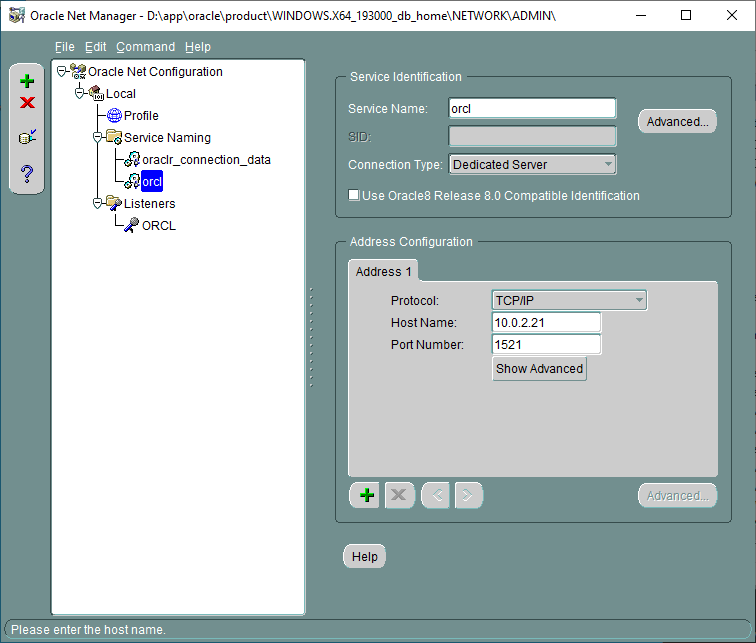
- On the left page, select Service Naming > orcl and enter the values as shown below:
| Net Manager Service Naming / orcl | |
|---|---|
| Service Identification | |
| Service Name | orcl |
| Connection Type | Dedicated Server |
| Address1 | |
| Protocol | TCP/IP |
| Host Name | 10.0.2.21 |
| Port Number | 1521 |
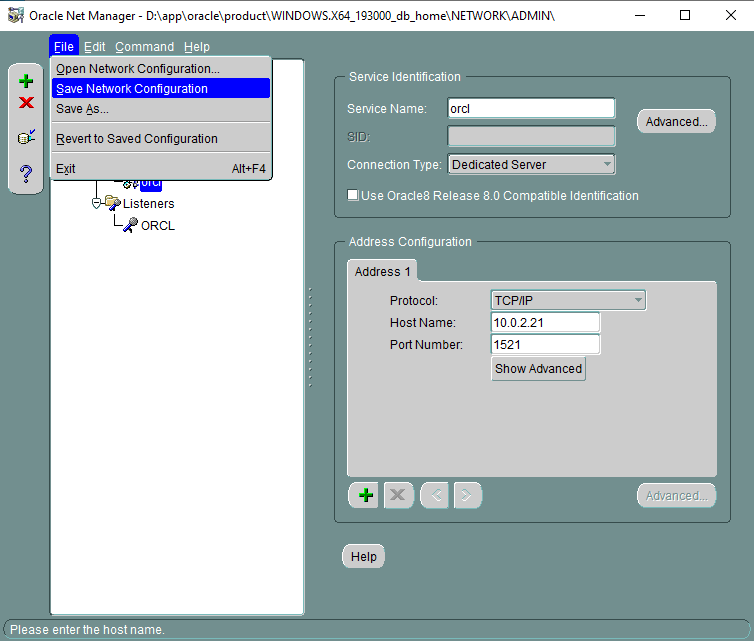
- From File > Save Network Configuration save the configuration.
![]()
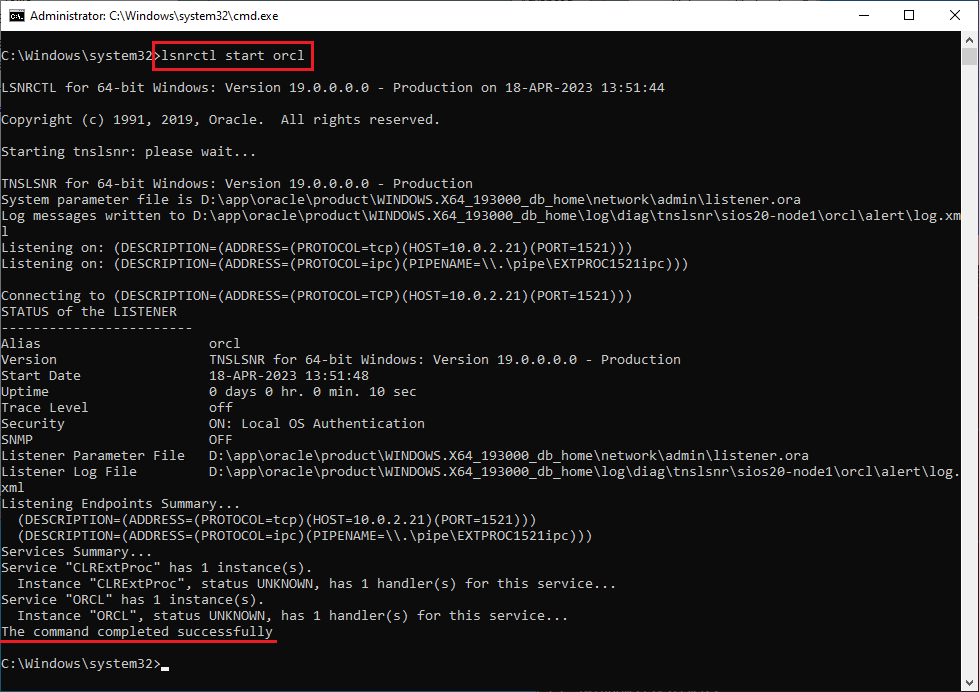
- Now the configuration of the Oracle listener is complete. From the administrator command prompt execute
lsnrctl start orcl.
![]()
Post your comment on this topic.