

Create a common resource for use with both the Oracle ARK and the PostgreSQL ARK.
Create an LB Health Check Resource
- In the LifeKeeper GUI, create an LB Health Check resource. From the menu bar, click Edit > Server > Create Resource Hierarchy and follow the prompts to enter the details following tables.
| LB Health Check (create) | ||
|---|---|---|
| Primary Server | SIOS20-NODE1 | |
| Backup Server | SIOS20-NODE2 | |
| Application to protect | Generic Application | |
| Reply daemon port | 12345 | |
| Reply daemon message | (Empty) | |
| LB Health Check Resource Tag | Gen-LB | (Note) |
| LB Health Check (extend) | ||
|---|---|---|
| LB Health Check Resource Tag | Gen-LB | (Note) |
| Backup Priority | 10 | |
*Note: The LB Health Check Resource Tag defaults to lbhc-<port>. The Gen-LB tag is used here to match the other samples.
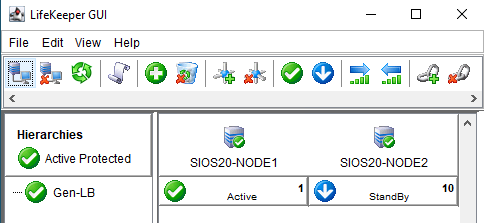
- The following screen will appear when the LB Health Check resource is created.
![]()
Create IP Resources
- In the LifeKeeper GUI, create an IP resource. From the menu bar, click Edit > Server > Create Resource Hierarchy and follow the prompts to enter the details following tables.
| IP Address (create) | ||
|---|---|---|
| Primary Server | SIOS20-NODE1 | |
| Backup Server | SIOS20-NODE2 | |
| Application to protect | IP Address | |
| IP Address | 10.0.2.21 | *1 |
| Subnet Mask | 255.255.255.255 | *2 |
| IP Resource Tag | 10.0.2.21 | |
| Network Connection | Ethernet 2 | *3 |
| Local Recovery | No | |
| IP Address (extend) | ||
|---|---|---|
| Subnet Mask | 255.255.255.255 | *2 |
| Network Connection | Ethernet 2 | *3 |
| Target Restore Mode | Enable | |
| Target Local Recovery | No | |
| Backup Priority | 10 | |
*1 : Specifies the IP address that was automatically assigned when the NLB was generated.
*2 : When configuring the Virtual IP address, the subnet mask must be set to 255.255.255.255 to avoid routing conflicts (for the 10.0.2.0/24 subnet in this example). When prompted for the subnet mask, you can enter the value in the text box.
*3 : The name may vary. Select the name of the (second) NIC connected to 10.0.3.0/24. Ensure that the NIC is connected to a subnet (10.0.3.0/24) other than the IP resource (10.0.2.21). As seen below, run ipconfig in the command prompt and select the NIC on which 10.0.3.11 or 10.0.3.12 is active (Ethernet 2 in the screenshot).

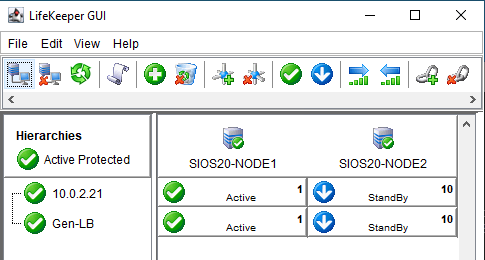
- The following screen will appear when the IP resource is created.
![]()
Creating a Mirror Volume Resource Hierarchy
Here we create a mirrored volume using the Block Volume disk (D drive) added to each cluster node.
- Log in to SIOS20LKNODE01 and launch the LifeKeeper GUI.
- From the LifeKeeper GUI menu bar, click Edit > Server > Create Resource Hierarchy and follow the prompts to enter the details following tables.
| Volume (create) | |
|---|---|
| Primary Server | SIOS20-NODE1 |
| Backup Server | SIOS20-NODE2 |
| Application to protect | Volume |
| Select Volume | D: |
| Volume Tag | Vol.D |
| Volume Type | Create Mirror |
| Network end points (Target / Source) | 10.20.2.12 / 10.20.2.11 |
| Mode | Asynchronous |
| Volume (extend) | ||
|---|---|---|
| Backup Priority | 10 | |
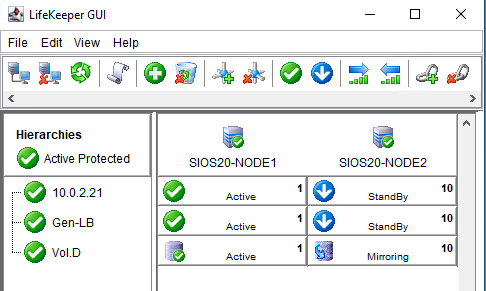
- The following screen appears when the mirror volume resource hierarchy is created.
![]()
Post your comment on this topic.