


This startup guide provides the minimum necessary steps and related information to start using DataKeeper Cluster Edition. For specific operations of the Windows OS itself, please check the manual of your OS.
In this guide, the product name DataKeeper Cluster Edition will be referred to as “DataKeeper”.
- Installing DataKeeper
- Starting DataKeeper
- Configuring a two-node replication cluster
If you encounter any problems while following these steps, please contact your support representative.
1: Preparing for DataKeeper Installation
Before you begin the DataKeeper installation, verify the following items.
Check the product information and restrictions
Please read the following before purchasing or installing DataKeeper for general information and restrictions.
- Release Notes -Contains information that users should be aware of, including new features provided in each version, discontinued features, bug fixes, system requirements, known issues and restrictions.
- Certification Information -Provides information on operating systems, storage, and software versions that can be used with DataKeeper and are supported for protection.
- Network Bandwidth -If replicating across a WAN, it is critical that a rate of change analysis be done to ensure there is adequate bandwidth.
- DataKeeper is a block-level volume replication solution and requires that each node in the cluster have an additional volume (other than the system drive) with the same size and drive letter.
Please review Volume Considerations for additional information regarding storage requirements.
Cluster Configuration:
It is important to configure Windows Server Failover Clustering with a quorum witness in all deployments, regardless of whether the number of nodes is odd or even. Modern clustering features such as Dynamic Quorum and Dynamic Witness automatically adjust vote assignments to maintain quorum and ensure an odd number of votes. As a result, adding a witness improves cluster resiliency and helps prevent split-brain scenarios.
For step-by-step instructions, refer to Microsoft documentation on clustering.
Obtain the DataKeeper product license and product image file
If you purchased from SIOS Technology, Inc. (Japan)
Please refer to “How to obtain a license”If you purchased from SIOS Technology Corp. (USA)
Please refer to “How to Obtain a License”
Check the network settings required for installation
Before installing DataKeeper, certain operating system and network settings must be configured. If these settings are incomplete, an error message may be displayed during installation. Review the message and correct the settings as needed.
Check firewall settings
To complete this step, configure the firewall as necessary to allow communication through the following ports.
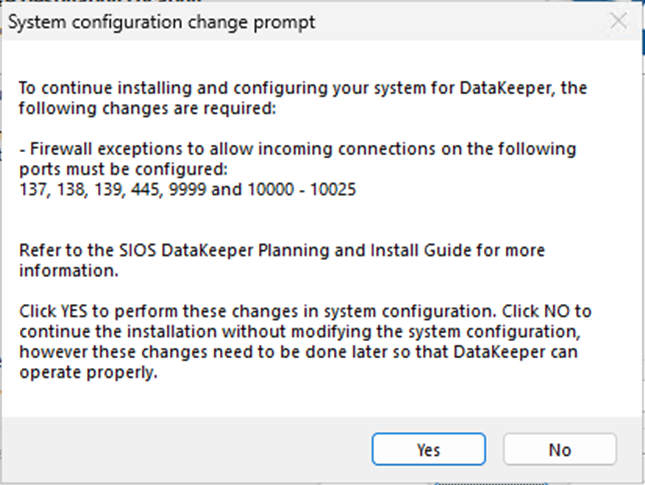
DataKeeper requires opening firewall ports 137, 138, 139, 445, 9999, and 10000 through 10025 for mirror creation and other functions. For details, refer to the Firewall Configurations. If the firewall is enabled during DataKeeper installation, the installation wizard automatically creates the necessary inbound rules.
Disable a Distributed Link Tracking Client
The Distributed Link Tracking Client must be disabled because leaving this service running may prevent DataKeeper from performing necessary controls such as locking volumes. You will be prompted to disable it during DataKeeper installation.
Install DataKeeper and Setting Up an Account
During a new DataKeeper installation setup, the user will be prompted for a DataKeeper Service Log On ID and Password.
For account details, refer to DataKeeper Service Log On ID and Password Selection.
When using in a workgroup environment, you must enable the “Network access: Let Everyone permissions apply to anonymous users” local security policy. This setting is not required when the server is in a domain environment.
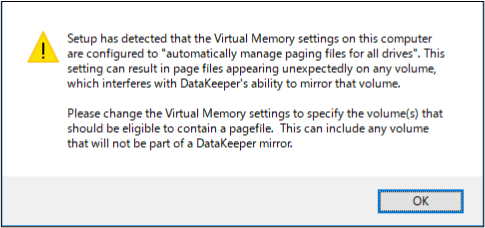
Disable “Automatically manage paging file size for all drives”
If the OS virtual memory setting is configured to “Automatically manage paging file size for all drives”, a page file may be automatically generated for the mirrored volume, potentially causing issues with mirroring. Therefore, you must change this setting to exclude the mirrored volume. For details, see Disable “Automatically manage paging file size for all drives” .
Store the intent log on a physical disk that is not involved in heavy read or write activity
DataKeeper mirroring uses an intent log. There is a performance overhead associated with the intent log, since each change to the mirrored disk will also be reflected in the intent log file. To minimize this impact, it is recommended that the intent logs be stored on a physical disk that is not involved in heavy read or write activity. For details on the intent log and how to change its storage location, refer to SIOS DataKeeper Intent Log.
Create a cluster in Windows Server Failover Clustering
Before installing DataKeeper, a cluster must be created in Windows Server Failover Clustering (WSFC) to enable resource creation. For detailed procedures on configuring WSFC, refer to the Microsoft documentation.
2: Installing DataKeeper
This section explains how to install DataKeeper.
DataKeeper is installed by running theDK-<version>setup.exefile included in the product image file “DKCE-<version>.zip”.
The script is wizard-based, prompting you to make selections or provide appropriate input for each step.
The executable fileDK-<version>setup.exewill be referred to as the “Setup file”.
Run the setup file
- Place the product zip file in any location. In this procedure, it is saved under C:\Users\Administrator.
- Use an extractor to place the file in any folder. In this example, we extract the files to C:\Users\Administrator\DK-X.X.X.
- Run the setup file in the extracted folder.
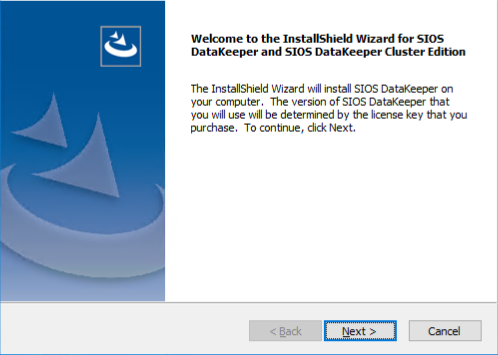
- When you run the setup file, the installation wizard will start as shown below.
![]()
- Select the features to install
By default, SIOS DataKeeper Server Components and SIOS DataKeeper Interface are selected.
![]()
When installing on the server that will perform mirroring, click Next to begin installation using the default settings. The descriptions for each checkbox are as follows:
SIOS DataKeeper Server Components
Install the DataKeeper server component. The user interface will not be installed.
SIOS DataKeeper User Interface
Install the DataKeeper user interface to manage replicated volumes. For details, see User Interface - Checking the port used by DataKeepr
Before installation, a confirmation window will appear regarding the firewall for the ports used by DataKeeper.
If there are no issues, click Yes to proceed.
![]()
- Selecting a DataKeeper Service Login Account
Select the account to use for the DataKeeper service log in.
The LifeKeeper service must use the same account (ID and password) as the DataKeeper service when selecting the DataKeeper service logon ID and password for each system.
Selecting a domain account will take you to a window where you enter the account ID and password.
![]()
Enter the appropriate account information. - Creating a Bitmap File Folder
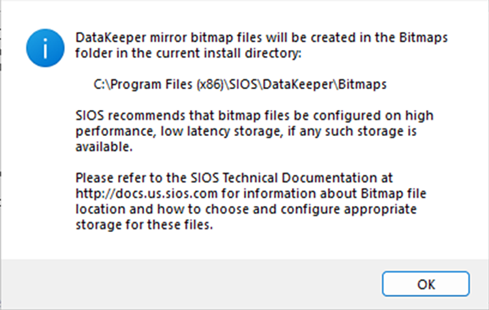
A folder for the bitmap used internally by DataKeeper will be created.
![]()
This completes the installation procedure for LifeKeeper and DataKeeper using the Setup file.


Install the License
After completing all the installation wizards for DataKeeper, the license installation screen will appear.
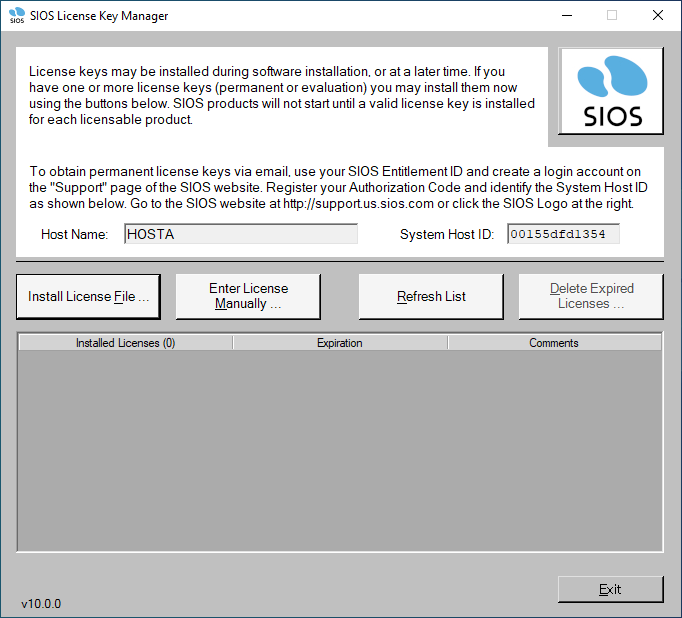
Click Install License File to apply your license from a file browser.
Follow the wizard instructions and restart
After installing the license, you must restart the computer to activate DataKeeper.
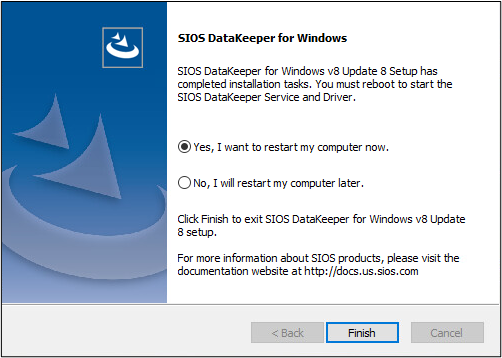
Be sure to restart your computer after installation.
After rebooting, the DataKeeper services will start.
3: Verifying that DataKeeper is running
DataKeeper must be running on all servers to be mirrored. This section covers the necessary steps for license installation following DataKeeper setup, and details the procedures for starting, stopping, and verifying the DataKeeper running status.
The DataKeeper process is managed through the Services MMC snap-in under Administrative Tasks.
Starting, stopping, and checking the status of DataKeeper are performed through the MMC snap-in.
Verify that DataKeeper is running
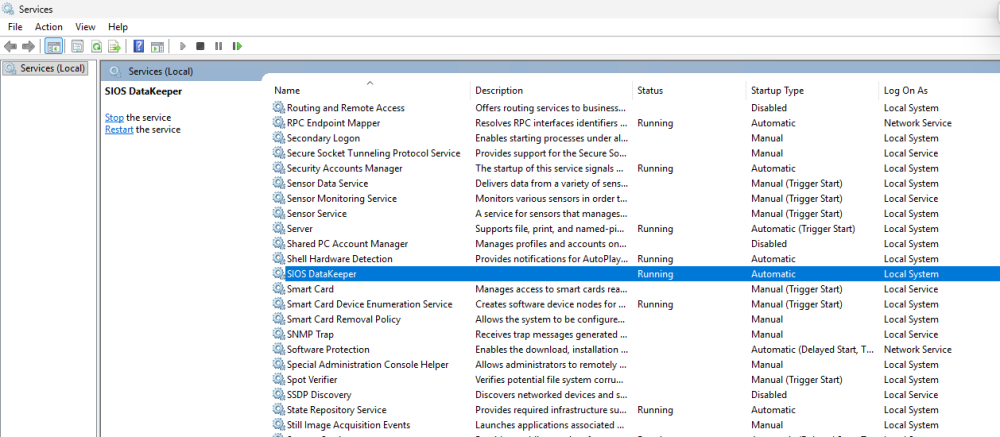
Use the MMC Services snap-in to verify that DataKeeper is running.
Check that the status of the service named “SIOS DataKeeper” is “Running”.
Below is an example.
Install the Localized Language Supplement
The Localized Language Supplements are available to support DataKeeper running in a localized environment. The Localized Language Supplement contains translated DataKeeper GUI text strings and context-sensitive help in the localized language.
For details on the language pack, see Installing Localized Language Supplement.
Begin the installation of the Localized Language Supplement by runningLKLangSup-<version>Setup.exe, located within the extracted product ZIP folder (DKCE-<version>.zip). Follow the installation wizard to complete the process. No user input is required.
This completes the basic installation procedure for DataKeeper.
To configure a mirror, DataKeeper must be installed on at least two nodes. Install DataKeeper on all servers designated for the mirroring configuration, following the same installation steps detailed earlier in this document
4: Configuring DataKeeper
The following section describes the most common cluster configurations.
2-Node Replicated Cluster
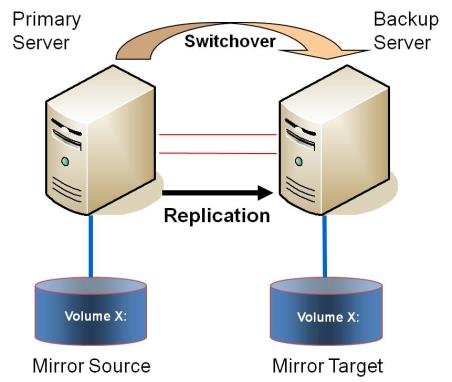
- Configure data mirroring (replication) in DataKeeper using the DataKeeper UI.
- Once the DataKeeper UI is running, connect to each of the nodes where you want to set up mirroring.
- Create a Job using the DataKeeper UI. This process creates a mirror and adds the DataKeeper Volume resource to the Available Storage.
Note – If clustering Hyper-V VMs, do not add the DataKeeper Volume Resource to Available Storage at the end of the mirror creation process. Instead, allow the mirror to create but do not choose to register the DataKeeper Volume in Available Storage at the end of the Mirror Creation Wizard, then follow the instructions on this page, Using DataKeeper Cluster Edition to Enable Multi-Site Hyper-V Clusters. Make sure that Virtual Network Names for NIC connections are identical on all cluster nodes. - If additional mirrors are required, you can Add a Mirror to a Job.
- With the DataKeeper Volume(s) now in Available Storage, you can create cluster resources (SQL, File Server, etc.) in the same way as if there were a shared disk resource in the cluster. Refer to Microsoft documentation for additional information or view this article in Clustering for Mere Mortals for step-by-step cluster configuration instructions.
Post your comment on this topic.